Chemistry Formatter Add-ins for Microsoft Word, Excel, and PowerPoint
Send e-mail to Chris King; my home page
Here are free, open-source add-ins for Microsoft Word, Excel, and PowerPoint that format chemical equations and exponents. The source code is released under the GPL v. 3 license. To illustrate their use, imagine typing the following line in Word:
Cu2+(aq) + SO42-(aq)
 CuSO4*5H2O Heat for 2 hours at 120
°C. ΔH = 1E4 J/mol
CuSO4*5H2O Heat for 2 hours at 120
°C. ΔH = 1E4 J/mol
(I typed -->, which Word automatically converted to
). Leave the cursor in this paragraph (or select just the text
to format). Click the
 button, which runs the add-in. The line is converted to
this:
button, which runs the add-in. The line is converted to
this:
Cu2+(aq) + SO42-(aq)
 CuSO4·5H2O Heat for 2
hours at 120 °C. ΔH = 1 × 10⁴ J/mol
CuSO4·5H2O Heat for 2
hours at 120 °C. ΔH = 1 × 10⁴ J/mol
Superscripts and subscripts were added; the arrow was replaced with a prettier arrow; and the asterisk was converted to a centered dot to indicate waters of hydration (or radicals). A plus (or minus) sign with space before it is not superscripted. Numbers not in the chemical formulas were unchanged, except that 1E4 (which could have been entered as 1e4) was converted to 1 × 10⁴.
In Excel, you could type the following into two cells:
*CH3 + *OH --> CH3OH
2H2(g) + O2(g) --> 2H2O(g) yield: 3.2E8 kg
Select both cells, click the
button, and the lines are converted to these:
·CH3 + ·OH
CH3OH
2H2(g) + O2(g)
2H2O(g) yield: 3.2 × 10⁸ kg
(These are shown in Calibri, which is Excel’s default font on the PC.)
Here are other examples of what the formatters do.
Square brackets may be present.
| [PtCl2(NH3)4]2+ | becomes | [PtCl2(NH3)4]2+ |
Radicals can be entered.
|
*CH3 + *OH
CH3OH
|
becomes |
·CH3 + ·OH
CH3OH
|
A plus or minus sign before a letter is not treated as a charge.
| 4-CH3C6H4OH | becomes | 4-CH3C6H4OH |
If more than one digit precedes a charge, the last digit goes with the charge.
| PO43- and O22- | become | PO43- and O22- |
A single digit preceding a charge goes with the charge, except for O3.
| O2-, P3-, NO3-, and CH3- | become | O2-, P3-, NO3-, and CH3- |
The program cannot read minds, so check the results. In the last example, CH3- was probably meant to be CH3-, rather than CH3-.
These add-ins take a couple of seconds to load the first time they are run; after that, they are quite fast.
Installing the Add-ins
First, click on the links to download the add-ins that you want. These add-ins are what I use for Office 365 and Office 2019, so they still work well.
Excel 2010 Chemical Formatter Last updated June 10, 2013
PowerPoint 2010 Chemical Formatter Last updated February 8, 2010
Second, place each add-in in the proper folder. These folders are hidden by default, so check to make sure they are visible: In Windows' "File Explorer", click on the View tab on the ribbon and, in the category, Show/Hide, ensure that there is a checkmark next to Hidden items.
Word: C:\Users\USERNAME\AppData\Roaming\Microsoft\Word\STARTUP
Excel and PowerPoint: C:\Users\USERNAME\AppData\Roaming\Microsoft\AddIns
As shown, the Word add-in has to go in the STARTUP folder, rather than the AddIns folder in order for the add-in to not have to be manually loaded every time Word starts.
For international users: The add-in goes in the …\Startup directory, which must be a "trusted location". To see the "trusted locations", on the ribbon go to File/Options/Trust Center/Trust Center Settings.../Trusted Locations. One of the default trusted locations is the directory …\Startup, which, at least in Office 2010, is shown in English, even on non-English computers, where that directory doesn't even exist! For example, in Dutch the …\Startup directory is …\Opstarten, which isn't a trusted location by default. So, to fix the problem, add, e.g., …\Opstarten, to the list of trusted locations. Now the add-in should work without security warnings.
Third, install the add-ins in your Microsoft Office programs. Start the program, Word, Excel, or PowerPoint. Click on the File tab on the ribbon. From that screen click on the Options menu item (located at the bottom, left side of the screen). The Word, Excel, or PowerPoint Options dialog box appears. On the menu on the left, select Add-Ins. The right side then displays a list of add-ins, below which is the word, Manage, followed by a drop-down list. From the list, select
for Word: Word Add-ins
for Excel: Excel Add-ins
for PowerPoint: PowerPoint Add-ins.
Click the Go button. Up pops a dialog box.
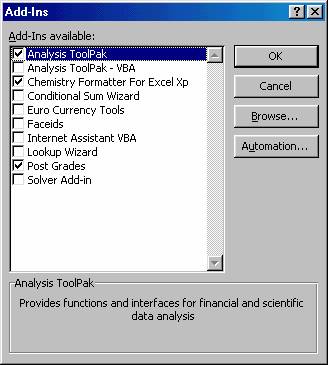
Use the Add or
Browse… or
Add New… button to find the file (in
the installation folder previously listed). Finally, put a check
mark next to the appropriate Chemistry Formatter entry and you are
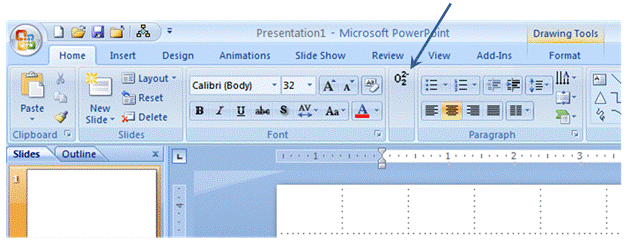
done. You can tell that the installation succeeded by the
appearance of a
button on the Home tab of the
ribbon, after the Font group:
Some Details
The chemistry formatters are written in the "Visual Basic for Applications" programming language, which is built into Microsoft Office. The code originated from an Excel macro provided by Dr. E. J. Billo, of the chemistry department at Boston College in Chestnut Hill, MA. His macro is also in the CD that comes with his book, Excel for Chemists, 3rd ed, which came out in September, 2011. An excellent book for learning Excel.
If you do some programming using Visual Basic for Excel or Word, you may have changed “Error Trapping” ( in the Visual Basic editor) to “Break on All Errors”. This setting may occasionally cause the add-ins to stop running. The problem will go away if one of the other error trapping settings is used.
Complete “Undo” capabilities are provided.
Word
The Chemistry Formatter for Word will process text in shapes, a “normal”
selection of text, a “block” selection (made by holding down the alt key
before selecting text), and cells in a table. The shapes and
normal selection are usually processed in less than a second.
Processing a block selection takes about 7 times as long, though this is
still only about a second for small selections. A block of cells
in a table is also somewhat slower to process if it extends over more
than one row, and doesn’t include all the cells in the row; however, it
is not as slow as a block selection. If the AutoCorrect “Replace
text as you type” option is turned off, the formatter will convert
-->, but not
, to
. If it is on, the formatter will convert
, but not -->, to
.
Word allows the user to select several regions of text at the same time (select the first region, hold down the control key, and select another region with the mouse). The Chemistry Formatter will only format the last region selected. The formatter does not process text in diagrams. Also, the formatter will produce an error message if hidden text at the very end of a document is selected (by using “Select All” from Word’s Edit menu).
Excel
To view the code, unload the add-in, open it from the menu, then go to the Visual Basic Editor (Shift-F12 is the shortcut key).
The Chemistry Formatter for Excel will process text in cells, in chart titles and axis labels, in text boxes, and in “AutoShapes”. The entire cell, label, textbox, or shape must be selected; if only part of the text is selected, the formatter will not run. To format a comment, shape, or textbox, select the border of the object, not the text. A shortcut can be used in a chart: if you select something in the chart besides the title or an axis label, then all titles and axis labels will be formatted.
Cells containing numbers or formulas are ignored. Hidden and protected cells are unchanged, as are linked textboxes. Blank cells are ignored, so you can run the formatter with an entire column or row (or the entire sheet) selected. The formatter is unable to format textboxes and other “AutoShapes” if they are on charts, so these will have to be formatted manually.
“Undo” is provided for cells. It is not available for other objects, such as comments and text labels. A drawback to adding undo capabilities is that it erases the contents of the clipboard.
The arrow,
and multiplication sign, ×, are operating system dependent in Excel
(Word doesn’t have this problem). If a Mac is used to create a
spreadsheet containing these characters, the symbols will not make sense
to someone viewing the spreadsheet on a PC, and vice versa.
Although both operating systems have some fonts in common, the character
sets used by these fonts are different. If you send a spreadsheet
to someone using a different operating system, you may want to first use
to convert
to --> and x to ×.
PowerPoint Add-in
“Undo” is available; Cntl +z, or the undo button or menu will restore the changes made by the add-in.
Other Details, 2007
SmartArt shapes, charts, and comments cannot be formatted. Most selections of part of a paragraph can now be formatted. The PowerPoint 2010 code, for curious VBA programmers, may be downloaded.
Programming Help Needed
These formatters do not work with the Mac. Also, LibreOffice now supports macros. Both of these could use a chemistry formatter. If you’d like to get the chemistry formatters to work on other platforms, I’d be happy to add a link to your site, or make your product available here. If you’d like, we could work together on the project. Getting the formatters to format text is the easy part. Getting them to handle any situation the user throws at them is the time consuming part. That requires learning the software’s object model. To produce a quality product requires testing all the possibilities, which takes time.
Let me know if you have problems or suggestions, or just like the formatters. I’m at cking@christopherking.name.
--Chris
Some Other Chemistry Items
Quickly Inserting Characters, such as °, ×, ∙, Å, and π
Chemists use all kinds of specialty symbols. To save opening up "Character Map" in Windows, here is a Word document that contains a list of 3-digit codes for entering characters that aren't on the keyboard. For example, to enter the degree sign, °, hold down Alt and press "248" on the numeric keypad.
ChemSpell
Nghê Quốc Khải has created a nice Word add-in called ChemSpell. This adds a dictionary to Word that contains words that are mainly chemistry-related. I downloaded the Chemspellv1.30.rar file (since the version is the newest), expanded it with 7-zip, and installed it. Didn't have to do anything in Word to get it loaded.
Last updated: September 12, 2021